
How to log into your GoHighLevel
Your GoHighLevel access is set up for you automatically — your login is matched to the same client accounts you can reach in YG3, so you never request access or manage permissions by hand. Signing in takes three steps.
1. Go to app.gohighlevel.com
Open app.gohighlevel.com. You’ll see the sign-in screen.
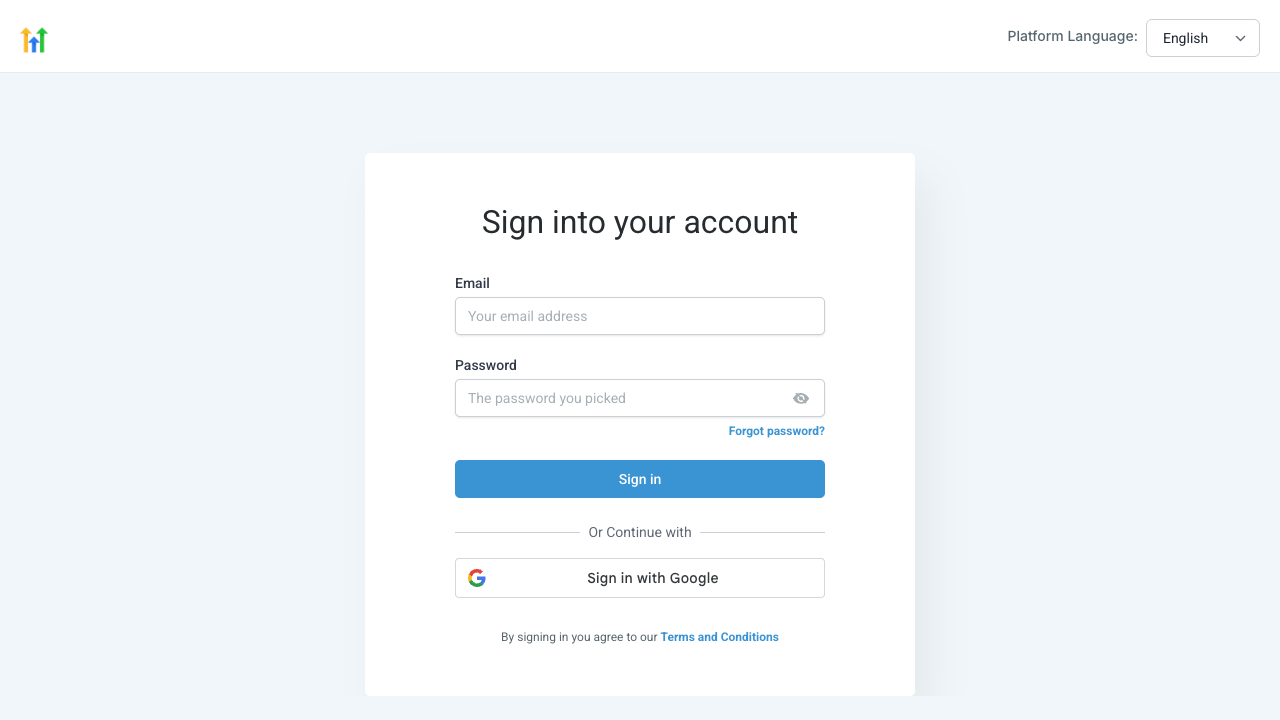
The GoHighLevel login page at app.gohighlevel.com.
2. Enter your email and password
Your email is the one shown in YG3 on the client’s Setup page under GoHighLevel access — it’s the same email you use for YG3. If your access was newly created for you, your password was emailed to you when the account was set up (change it on first sign-in). If you already had a GoHighLevel login, use your own password.
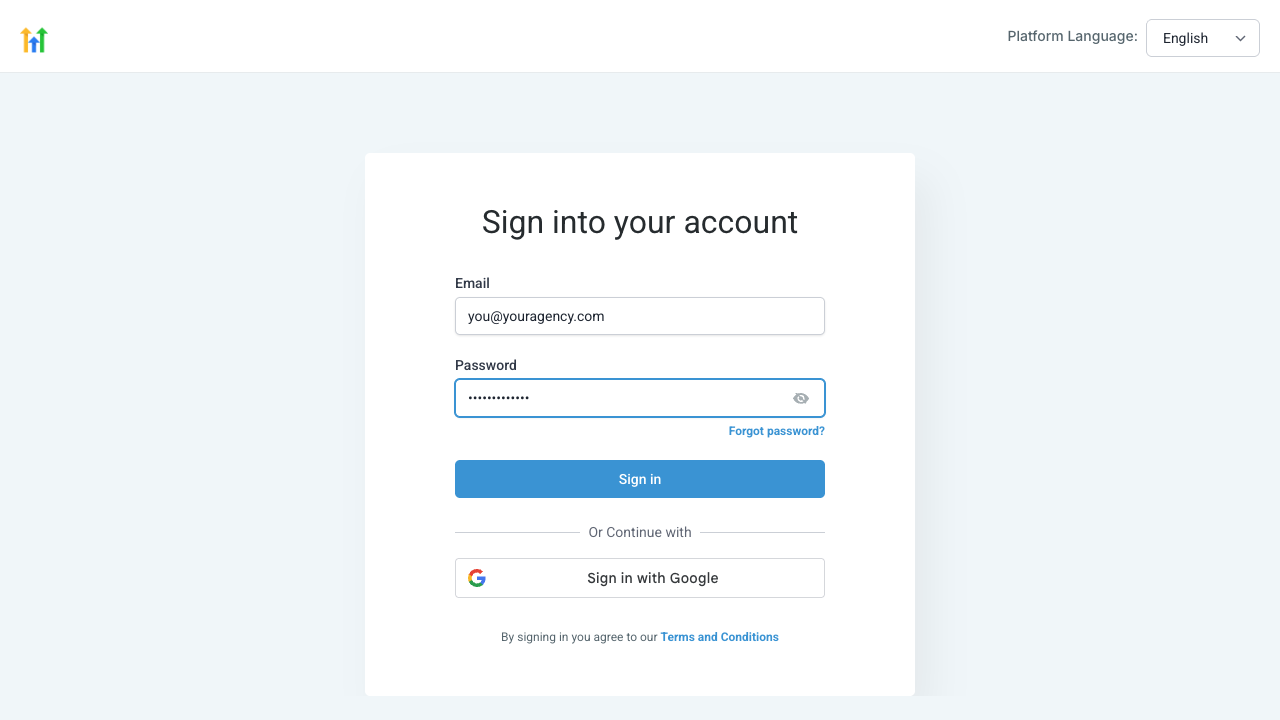
Enter your email and password, then press Sign in. Forgot your password? Use “Forgot password?” right here.
3. Enter the security code
For your security, GoHighLevel emails a 6-digit code to your address each time you sign in. Check your inbox and enter it. If it doesn’t arrive in a minute, use the resend link on the page.
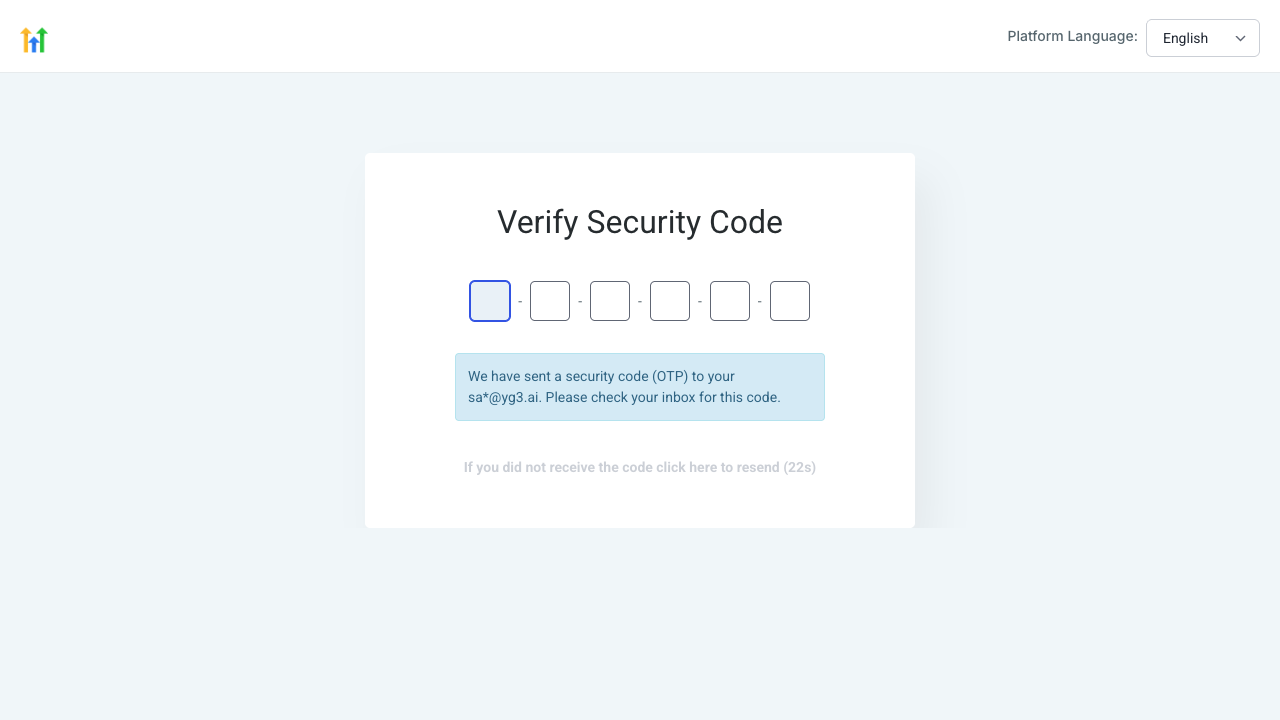
Enter the code sent to your email to finish signing in.
4. You’re in
That’s it. You land in your GoHighLevel workspace with access to exactly the client sub-accounts you can reach in YG3 — no more, no less. When a new client is added, access is mirrored to you automatically, so there’s nothing to set up again.
Forgot your password?
Use the Forgot password? link on the login screen — GoHighLevel will email you a reset link. YG3 doesn’t store or manage your GoHighLevel password, so resets always happen from the GoHighLevel login page itself.