
Setting up a client: every integration, step by step
Once you create a client, the Setup tab is your install checklist. It only shows the integrations that client actually needs based on the services you are running for them. Your job is simple: walk the list and drive every relevant check to green.

The Setup page: analytics, paid ads, GoHighLevel, and the rest. Each card has a “How to set this up” step-by-step.
Analytics: pixel and lead capture
Two pieces feed the reporting layer. The tracking pixel is first-party and cookieless; it captures pageviews, form submissions, and visitor identity on the client’s website, and it keeps working as third-party data dries up. Lead capture gives you a forwarding address: hand it to the client and have them set a forwarding rule on their primary inbox, and every inbound inquiry lands in the Leads tab automatically.
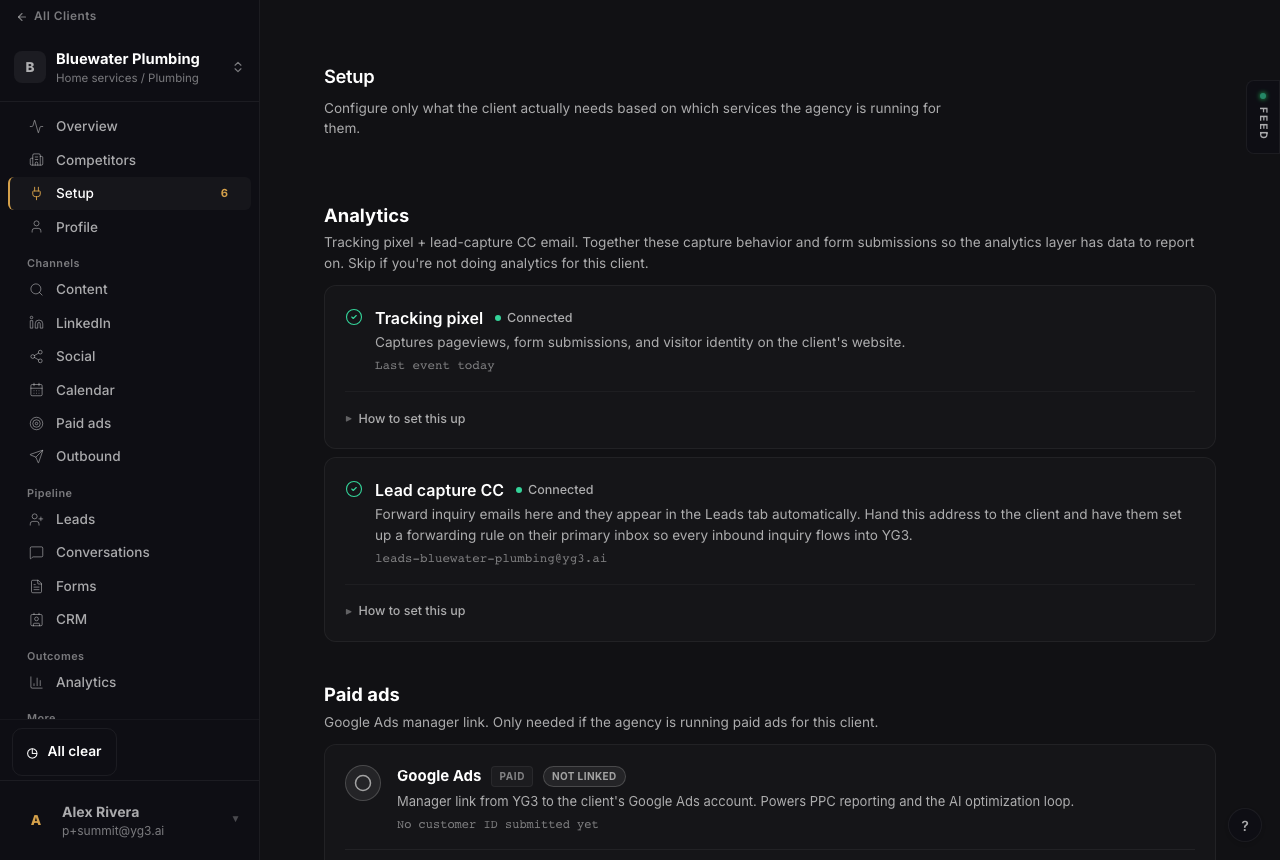
Tracking pixel and lead-capture CC, both connected. Use the in-card “How to set this up” for the exact snippet and forwarding steps.
Paid ads: the Google Ads link and conversion tracking
If you are running paid ads, link Google Ads first. Enter the client’s Google Ads customer ID and press Send link request. That sends a manager-link invitation from the YG3 manager account (shown on the card) to the client’s account; the client approves it inside their own Google Ads, and the link powers PPC reporting and the AI optimization loop.
Then set up conversion tracking
Conversion tracking tells Google what counts as a result (calls, form fills, purchases). It is required before conversion-based bidding: without it, Google rejects Maximize Conversions and Target CPA, and smart bidding has nothing to learn from. Set conversions up in Google Ads, then check the box here. Until you do, campaigns launch on Maximize Clicks so Google does not reject them.
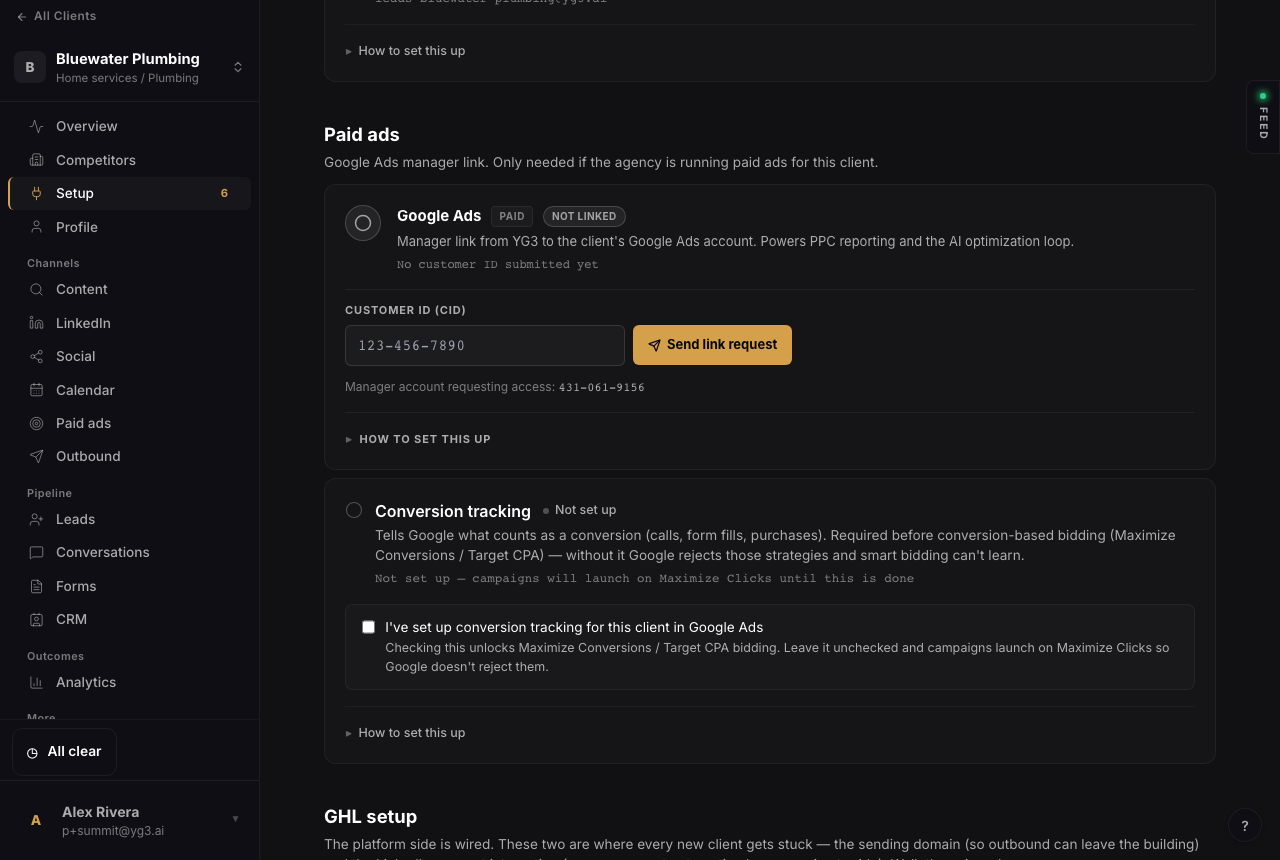
Send the link request, note the manager account requesting access, then confirm conversion tracking once it is live.
GoHighLevel: LinkedIn and the sending domain
The platform side is already wired. These are the two that every new client gets stuck on, so walk them in order. LinkedIn connects the client profile so posting, engagement automation, and audience signal have a session to ride. The sending domain is what lets outbound email leave the building: configure the dedicated domain, DNS, and deliverability inside GoHighLevel Email Services (Settings, then Email Services, then Dedicated Domain), then record it back here so the platform knows it is ready.
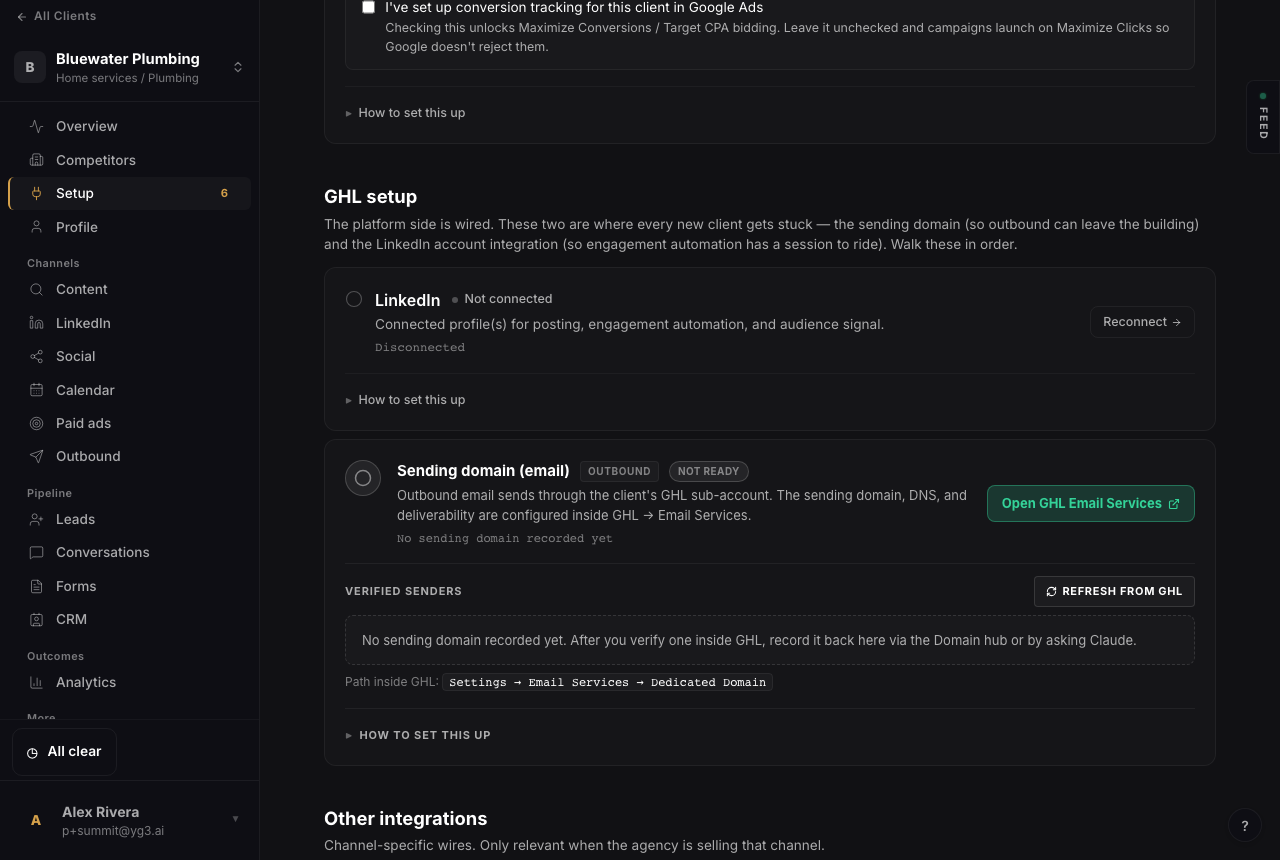
LinkedIn and the sending domain. Open GHL Email Services from the card, verify the domain, then refresh it back here.
Then keep it green
The other integrations are channel-specific and only matter when you are selling that channel. Once the relevant cards are green, the account is set up. The dealer’s ongoing job is keeping it that way: check setup health on a cadence so a lapsed pixel or an expired LinkedIn session never quietly breaks the work. That habit is what earns the lead flow.
New to the program? See the full dealer playbook.