
How to connect a Google Ads account
YG3 connects to Google Ads through a manager link. You enter the account’s customer ID, we send an invitation, and an admin accepts it inside Google Ads.
At a glance
- Open Paid ads → Settings
- Copy the customer ID from Google Ads
- Paste the CID and send the link request
- Accept the invitation in Google Ads
- Confirm Connected in YG3
About 5 minutes in YG3, plus time for the client to accept in Google Ads.
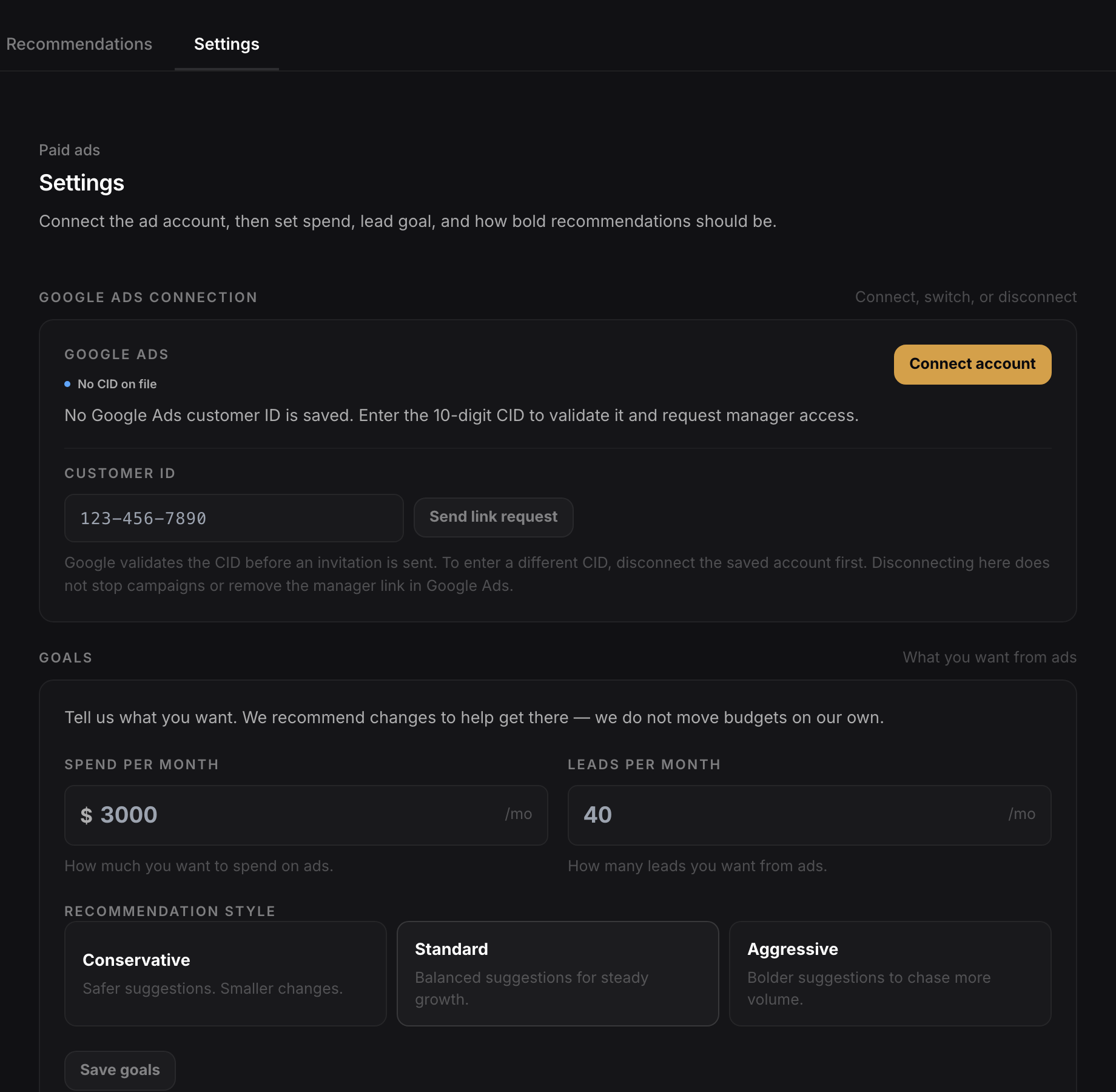
Open Paid ads → Settings
In the client workspace, open Paid ads, then the Settings tab. The Google Ads connection card is at the top.
- →Paid ads → Settings
- →Look for the Google Ads connection card
Copy the customer ID from Google Ads
In Google Ads, find the 10-digit customer ID (CID) in the top-right corner of the account.
- →Format looks like 123-456-7890
- →Use the client account — not a manager account
Paste the CID and send the link request
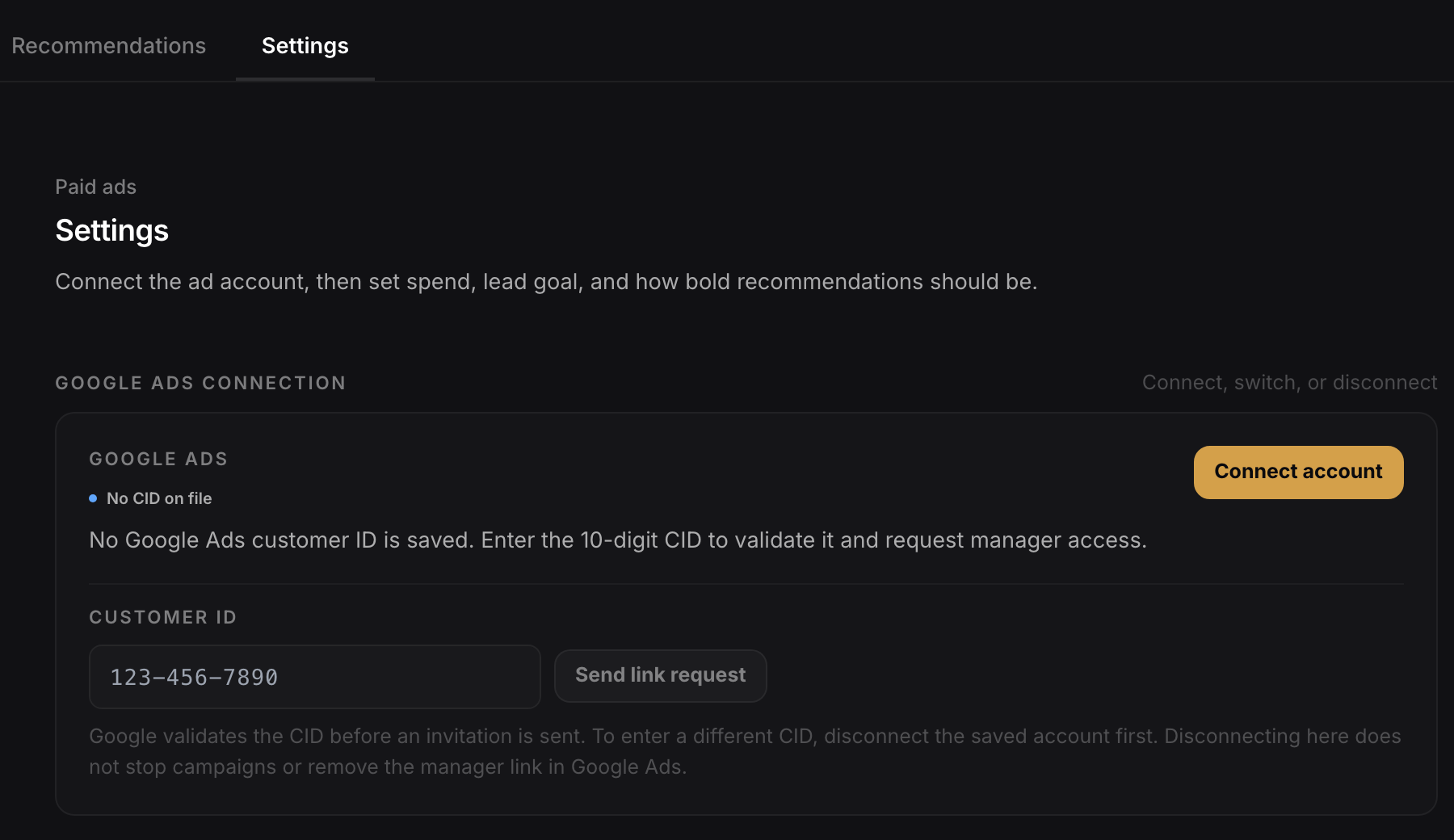
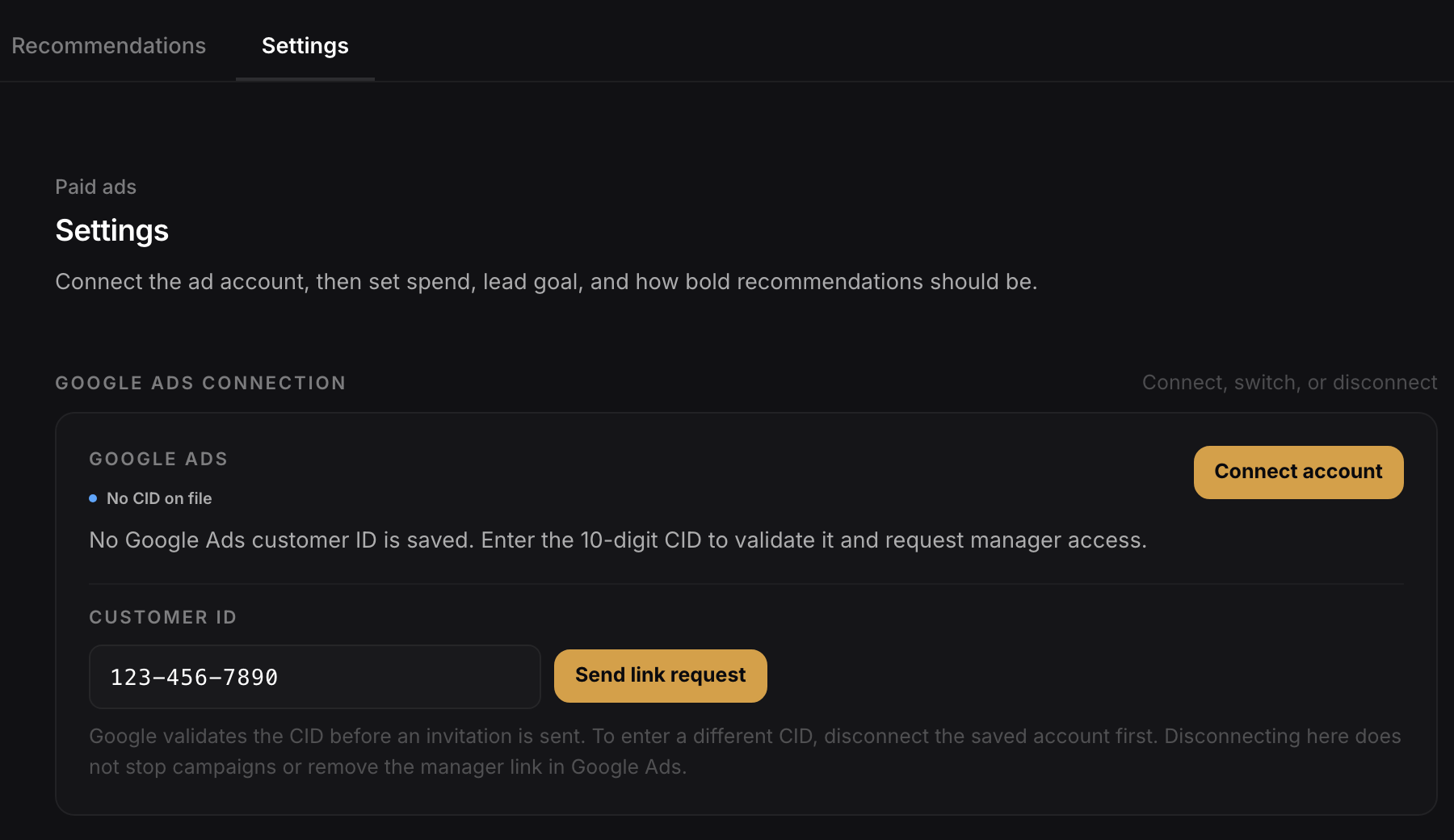
Back in YG3, enter the CID in Customer ID, then click Send link request.
- →Send link request turns on once all 10 digits are entered
- →Status changes to Awaiting approval
Accept the invitation in Google Ads
An admin of that Google Ads account must approve the manager link.
- →Open the matching Google Ads account
- →Admin → Access and security → Manager accounts
- →Find the YG3 invitation → Accept
Confirm Connected in YG3
Return to Paid ads → Settings and click Check status. When approved, the card shows Connected.
- →Reporting and the Bid Map sync after connection
- →Status auto-refreshes while waiting on approval
See also: Client setup checklist · Paid ads / Bid Map